
XM login: Members Area vs MT4/MT5 and common errors fixed
It comes up often in trader groups: someone panics and posts “XM has locked my account, I can't log in!”, with a MetaTrader screenshot showing Invalid account.
And usually the account is not locked at all: the person is holding the key to one door and trying it on another. Like every broker that runs on MetaTrader, XM has two separate login systems.
The Members Area is for managing money, MT4/MT5 is for trading. XM adds a quirk of its own that makes the mix-up even easier: it lets you open many trading accounts under one profile, each with its own ID number and possibly a different server.
The order below follows that tangle: get in through the right door, fix each error, then lock down security.
Logging in to XM in the right place: Members Area vs MT4/MT5
| What you need to do | Where to log in | With which details |
|---|---|---|
| Deposit/withdraw, claim a bonus, verify, open more accounts | Members Area on the official XM website (or the XM app) | Email + password you registered with |
| Place trades, analyse charts | MT4 or MT5, the version you chose when opening the account | Account ID + trading password + the right SERVER (e.g. XMGlobal-MT5 2) |
A detail people often miss: an account opened on MT5 cannot log in to the MT4 software, and the reverse is also true. They are two separate programs that do not share IDs.
If you have forgotten which type you opened, go to the Members Area: the accounts section shows clearly which platform and which server each ID belongs to. Once you have this map of the two doors, the specific errors below take only a few minutes.
Common XM login errors and how to fix them
- MT4/MT5 says “Invalid account”: usually the wrong server or the wrong platform (MT4 vs MT5). Open the Members Area, check the correct server for that ID, and enter it again. Remember: each account in your profile can sit on a DIFFERENT server.
- Forgot your Members Area password: use “Forgot password” on the login page and you get a link at your registered email. Can't find the email? Check spam and your other inboxes; the XM welcome email shows which address you signed up with.
- Forgot your MT trading password: change it directly in the Members Area for each account ID, with no need to contact support.
- Not receiving the OTP/verification code: check the spam folder, sync your phone's clock if you use an authenticator app, and try a different network. Still stuck? Contact XM's Vietnamese-language live chat.
- Logged in but the account/bonus has “disappeared”: usually you are looking at the wrong ID. With several accounts in one profile, the bonus sits on one ID while you have another one open. Check the ID number before you panic.
- Account disabled after a long time unused: an account that stays inactive for a long time may be archived. Contact support to reactivate it instead of registering another profile on top (that can easily breach the duplicate-profile terms).
With getting in sorted, one more danger waits right at the door, and people typing in a hurry often fall for it.
Fake XM login pages: look closely at the address before typing your password
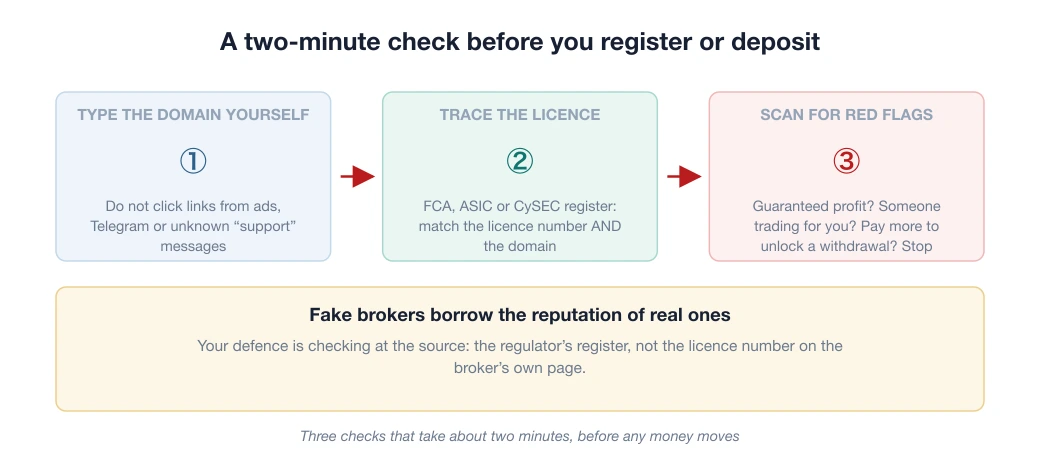
The more people search for a brand, the more fake login pages appear, and “xm login” is a heavily searched term, which makes it a juicy target.
The usual script: a fake page that looks identical greets you from an ad link or a message, you type your email and password, and whoever is behind it immediately holds the key to your Members Area, where the withdrawal function lives.
The rule is the same as for every broker: only log in on the official xm.com website typed by hand, or the XM app from the official store; XM never asks for your password or OTP by message.
And turn on 2FA today. The brand-copying tricks are covered in detail in the article on fake brokers posing as reputable ones.
After you log in: 3 things XM users often need right away
- Deposits, withdrawals and the bonus: XM's promotions are more complicated than the norm, and withdrawing while holding a bonus cuts the bonus in proportion. Read XM deposits and withdrawals (with a worked “three-part balance” example) before you press withdraw.
- Opening another account type: do it right in the Members Area, for example adding a low-spread Ultra Low account next to a beginner Micro account, as covered in the guide to opening an XM account.
- Re-assessing the broker from time to time: broker conditions change constantly, and our XM review 2026 is updated with both strengths and limitations so you can check against it.
Frequently asked questions
Where is the official XM login?
The Members Area on the official xm.com website (email + password) or the XM app from the App Store/Google Play. For trading, you log in to MT4/MT5 with your account ID + trading password + the exact server shown in the Members Area.
Why does MT4 say Invalid account when I log in to XM?
Because of the wrong server or the wrong platform: an account opened on MT5 cannot log in to the MT4 software, and the reverse is also true. Check which platform and server the ID belongs to in the Members Area, then enter the details again exactly.
One XM profile has several accounts. How do I log in?
You log in to the Members Area once with your email; each trading account has its own ID + server when you open MT4/MT5. Bonus and balance sit with each ID separately, so check you have the right ID before concluding the money is “lost”.
Spotted something inaccurate? Tell us and we will check it and publish a correction.