
Vantage login: the Client Portal, MT4/MT5 and TradingView
At many brokers, a login guide needs one sentence. Vantage needs a map, because it runs four trading platforms side by side (MT4, MT5, cTrader, TradingView) next to the Client Portal that manages your money, and each door has its own set of login details.
Newcomers get lost between these doors easily. The door people get wrong most often is TradingView, because it does not take an MT account number and goes through a separate authorisation flow.
The Vantage login map: one Portal, four platforms
| Door | Used for | Log in with |
|---|---|---|
| Client Portal (secure.vantagemarkets.com / the Vantage app) | Deposits/withdrawals, KYC, opening accounts, copy trading | Email + the password you registered with |
| MT4/MT5 | Traditional trading, running EAs | Account number + trading password + the correct Vantage server |
| TradingView | Placing orders straight from the TradingView chart | CONNECT your Vantage account to TradingView through the Trading Panel button and log in through authorisation; you do not type your MT password into TradingView |
The last row causes the most confusion: many people try to “log in to Vantage on TradingView” with their MT account number, which is the wrong mechanism. The TradingView connection goes through its own authorisation flow in the Trading Panel (choose the Vantage broker → log in through Vantage's official window).
Remember the rule: never type your Vantage password into a form on a third-party website. If a process makes you do that, you are in the wrong place, or worse: on a fake page.
Three different passwords, and only one can place orders
A Vantage account has three separate passwords, and they do not substitute for one another. That is where many “I typed the right password and it still says wrong” cases come from:
| Password type | Where it is used | What it lets you do |
|---|---|---|
| Portal password | Client Portal / the Vantage app | Deposit, withdraw, KYC, manage accounts |
| Trading password (master) | MT4 / MT5 | Open, close and modify orders |
| Investor password (view only) | MT4 / MT5 | View only, cannot place orders |
Two situations come up often from this:
- You enter the Portal password into MT4 → it says wrong. That is by design: MT4 needs the trading account number + trading password, not your email + Portal password.
- You can log in but the order button is greyed out. You are using the investor password by mistake, the view-only kind. Log out and log back in with the master password.
Safety tip: the investor password is very useful when you want to let someone else view your account (for example, to get feedback on a strategy) without handing over trading rights.
If someone asks for the master password instead of the investor one, stop there. A person reviewing performance does not need the right to place orders, and there is no legitimate reason to ask for it.


Common Vantage login errors: fix them in this order
- MT4/MT5 “Invalid account”: check the server in the account-opening email or the Client Portal. This is a common group of errors, as at other MetaTrader brokers.
- Forgot your Portal password: “Forgot password” → reset email. If you have also forgotten which email you registered with, look for Vantage's welcome email in your old inboxes.
- TradingView does not show Vantage in the Trading Panel: update the app or refresh the web page, and search for the exact name “Vantage”. If you are connected but cannot place orders, check whether your account is a type that supports TradingView (see the guide to choosing a platform when you register with Vantage).
- Copy trading not syncing: the copy feature lives inside the Portal/app ecosystem. Log in to the official Vantage app, not through any third-party “copy for you” app.
- Locked after too many wrong attempts: stop guessing and use the password reset flow, or the support live chat.

Fake Vantage login pages and the “cloned copy trading app” trap
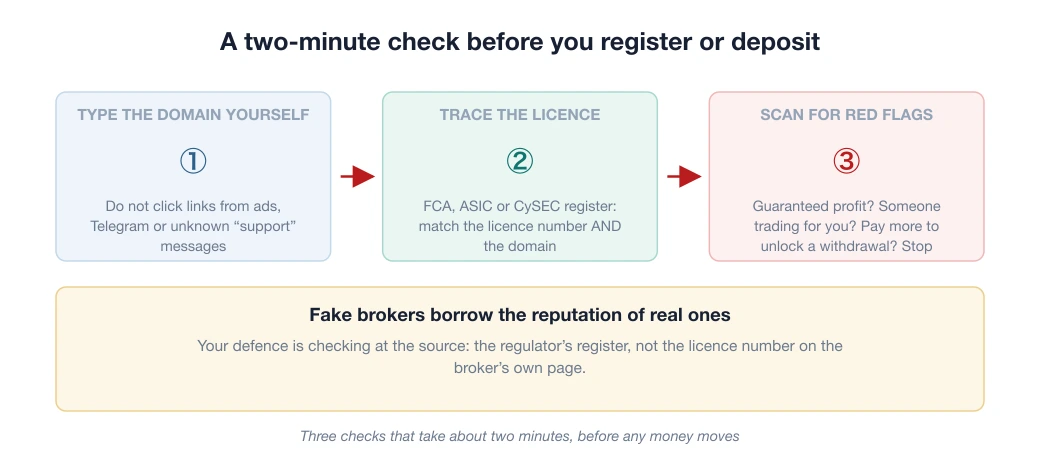
Vantage has a well-developed copy trading arm. That is also where bad actors like to build cloned “Vantage copy apps” to herd users into logging in, when the real purpose is to harvest accounts.
The three-no rule: do not download apps outside the official App Store/Google Play; do not log in through links in messages inviting you to a “copy deal”; do not give your password to a “setup support expert”.
The full picture of broker brand-cloning tricks, including the websites the police have named, is in the article on fake brokers posing as reputable ones. And as with any account that can withdraw money: turn on 2FA in the Portal the first time you log in.
After you log in: three next steps
- Your first deposit: Vantage is strong on both local VND channels and USDT TRC20. How to choose a “lane” for your profile is covered in Vantage deposits and withdrawals.
- Trying copy trading: read the clear-eyed analysis of copy trading first, especially the part on choosing a master and allocating capital, before you press Copy on anyone.
- Assessing the broker as a whole: the Vantage review 2026 covers why Raw ECN from 50 USD is a real selling point, and where this broker still falls short.
Frequently asked questions
Where is the official Vantage login?
The Client Portal at secure.vantagemarkets.com or the Vantage app from the App Store/Google Play (email + password). For trading: MT4/MT5 with your account number + server; TradingView connects through the Trading Panel using the official authorisation flow.
How do I log in to Vantage on TradingView?
Open the Trading Panel on TradingView → choose the Vantage broker → log in through the official Vantage authorisation window. Do not type your MT account number or password directly into any third-party form.
Which Vantage copy trading app is real?
Only the official Vantage app on the App Store/Google Play. “Vantage copy apps” promoted through messages or signal groups are channels for harvesting accounts: do not download them and do not log in.
Spotted something inaccurate? Tell us and we will check it and publish a correction.